
To bulk import student, go to Student Information > Student Admission click on the Import Student button present at the top right corner on the right side in the student admission page, on click of this you will be redirected to new page
You have to follow all the necessary instructions given here to create a CSV file. Here you can also add multiple students at the same time for this, you have to create a CSV file format. You can also download the sample file from the top right corner by clicking on the Download Sample Import File button.
You shouldn’t delete the first row of CSV file. It is necessary to fill the required field in this file. You can not use duplicate admission number, roll number and always fill it with the unique number, even if you have enabled auto-generation of student admission number.
Important Note: At the student-import page, instructions are given for preparing CSV files, be careful about admission number, roll number and date format (yyyy-mm-dd). Duplicate “Admission Number” (unique) and “Roll Number” (unique in section) rows will NOT be imported and you can get the message of record already exist.
READ the instructions properly
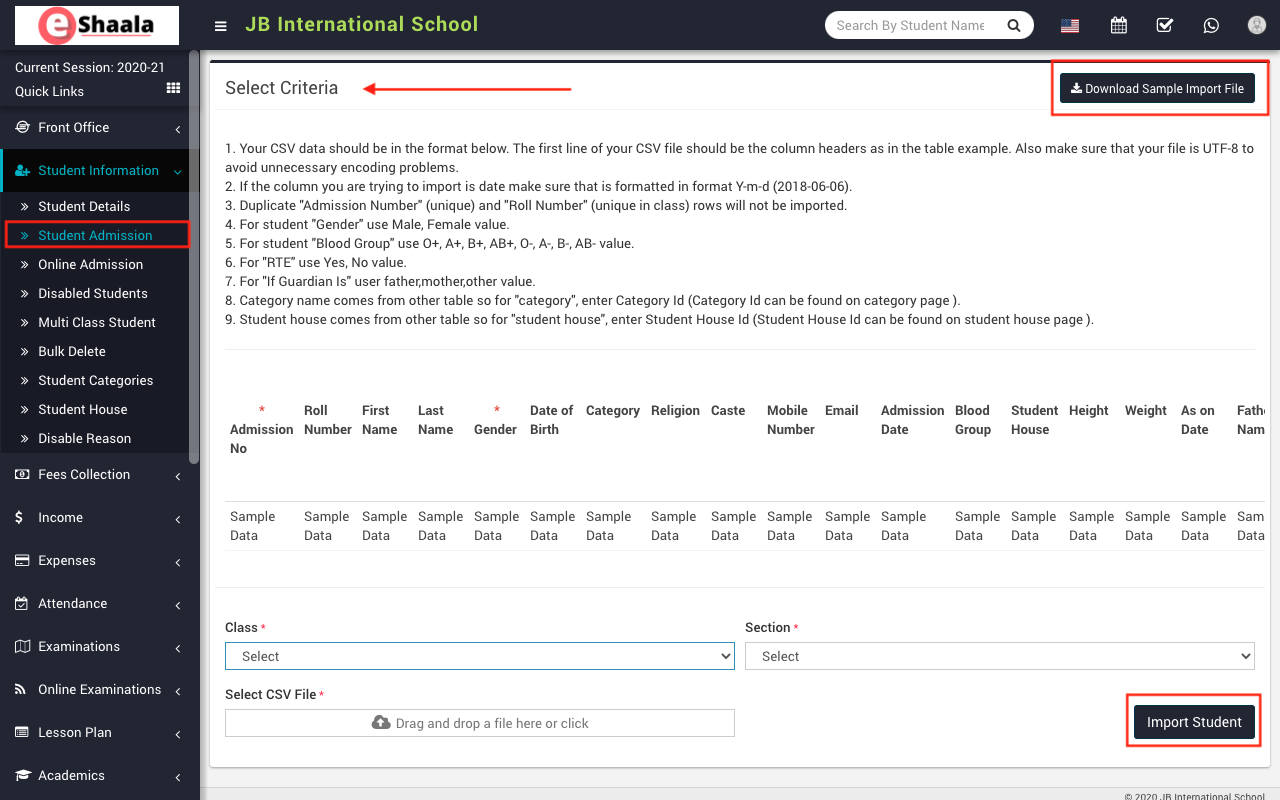
After completing the file, here select the Class and Section and then you have to select this CSV file on Select CSV File option and then click on Import Student button.
 English
 Hindi
Hindi Marathi