
To collect fees, go to Fees Collection > Collect Fees then select Class and Section and then click on the Search button. You can also search student by keyword in Search Text Box and click on the Save button. The list of students will be shown at the below of the page.
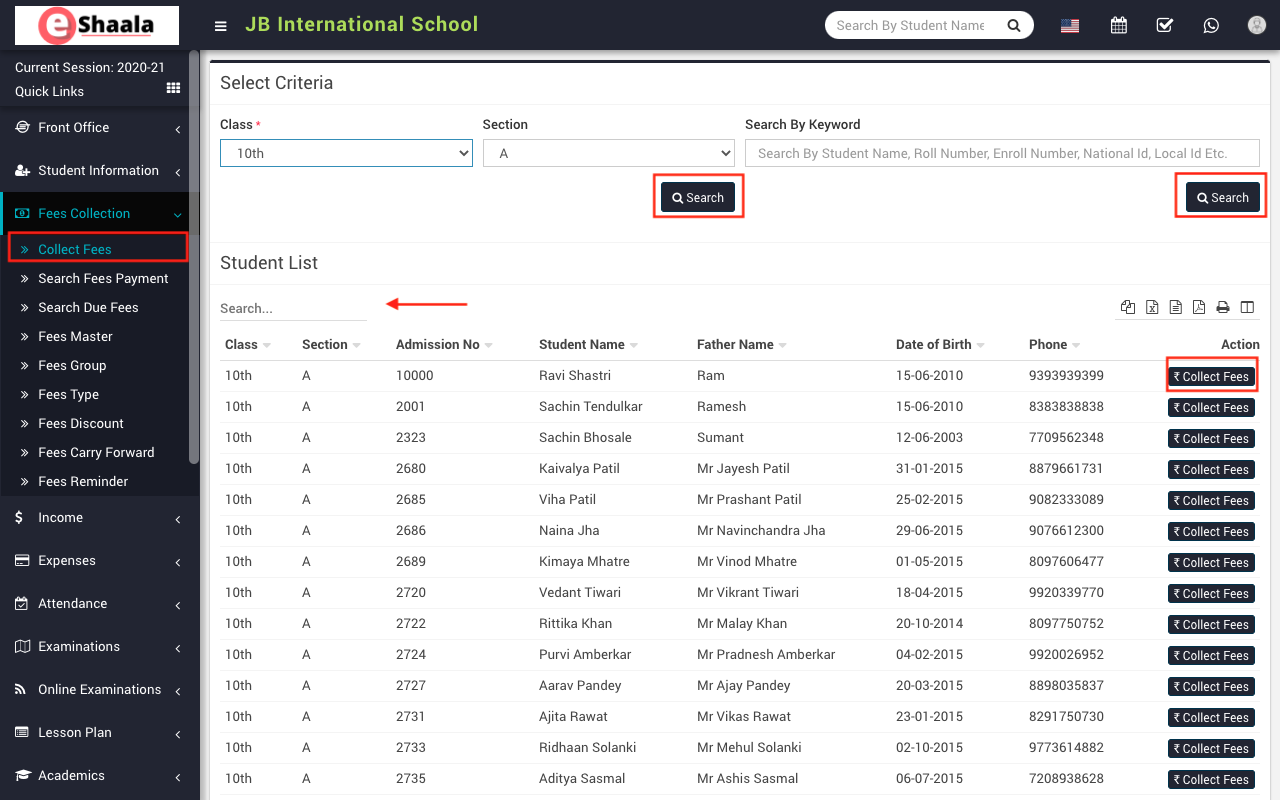
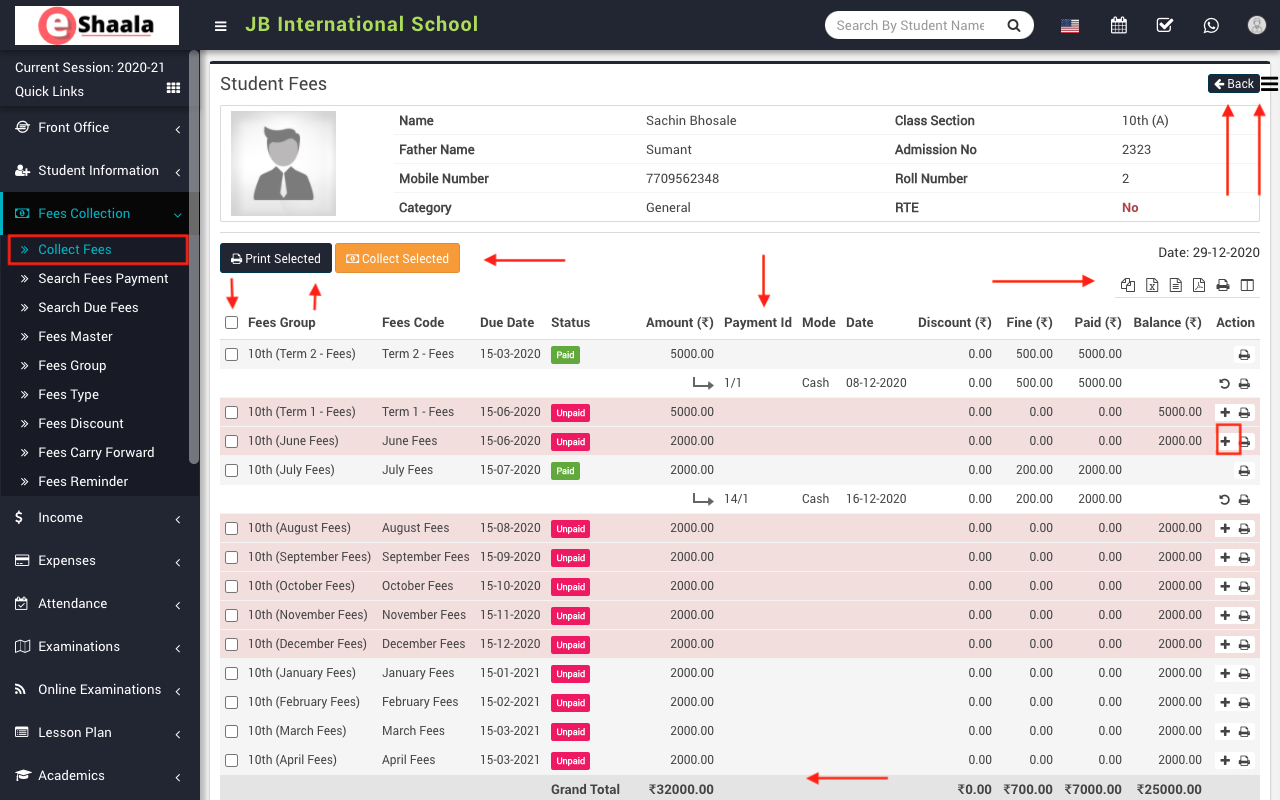
To view fees detail click on Collect Fees button present at Action column in the student list, on click of this button Student Fees page will be open. Here you can see all assigned student fees details. To collect fees click on Add (+) icon present in action column, on click of this icon modal will be open.
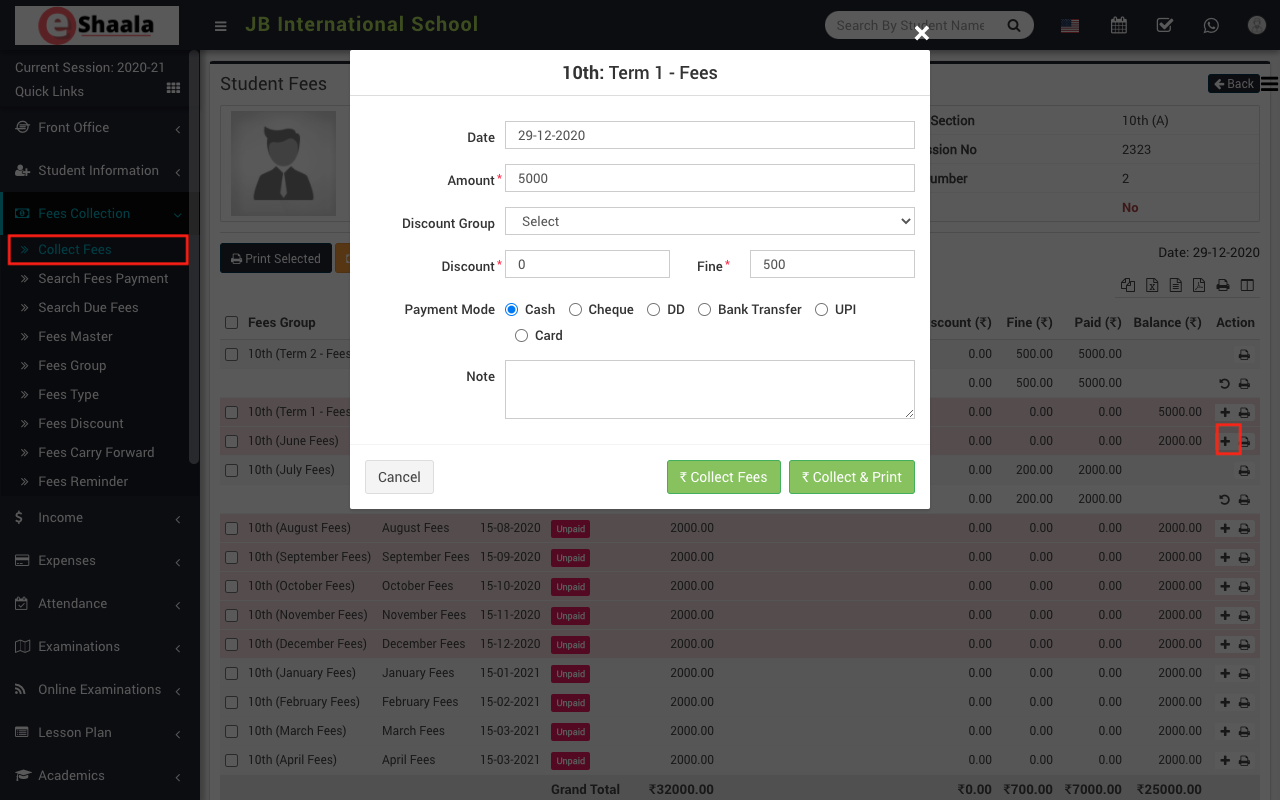
Check and Fill all the entries like Date, Amount, Discount Group, Discount, Fine, Payment Mode (Cash, Cheque, DD, Bank Transfer, UPI, and Card) and Note (if you have any note) and then click on Collect Fees button.
If you want to print fees receipt click on Collect & Print button. Now fees have been collected and Revert button visible for reverting the fees. For printing Fees Receipt click on Print button from Action column.
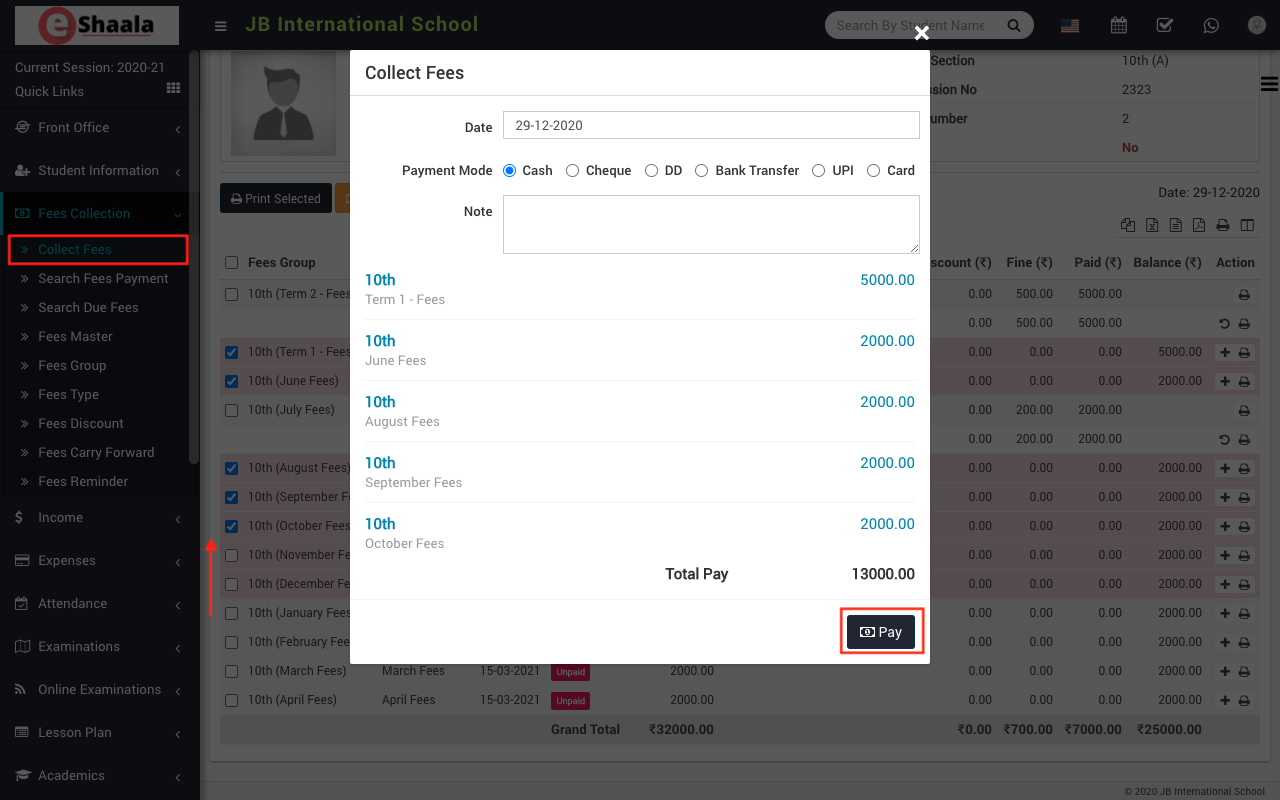
To collect multiple fees, at the same time select multiple fees from left checkboxes then click on Collect Selected button.
If you have assign fees discount then you can do fees discount adjustment, click on Apply Discount button from Action column, on click of this button Discount modal will be open. Here enter Payment Id on which you want to apply the discount and enter Description and then click on Apply Discount button.
 English
 Hindi
Hindi Marathi