
To create Lesson Plan first you should prepare Class Timetable from Academics > Class Timetable. Lesson Plan can be created teacher wise so once you created Class Timetable for the class, it will reflect in Manage Lesson Plan, select Teacher dropdown.
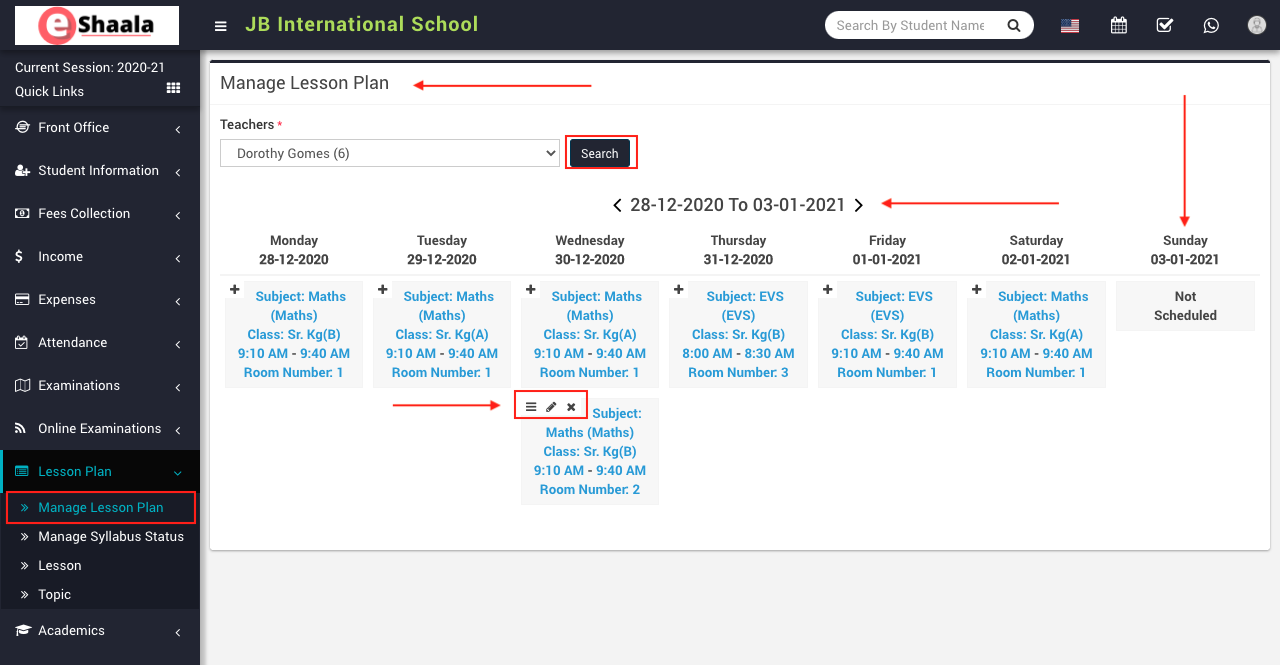
Now, go to Lesson Plan > Manage Lesson plan, select Teacher for which you want to add Lesson Plan (all teacher’s whose timetable is created will show in Manage Lesson Plan drop-down). Here at any period + sign button will show to Add Lesson Plan window for a selected teacher.

Click on + icon button to enter Lesson, Topic Sub Topic, (Date, Time From, Time To will come automatically from the period), Lecture YouTube URL (if you have lecture recorded video uploaded on YouTube), Lecture Video (if you have a lecture video file), Attachment (any teaching material which will be available for student download), Teaching Methods, General Objectives, Previous Knowledge, Comprehensive Questions, Presentation (you can also add an image in presentation from Add Image button present above the presentation field) details for Lesson Plan then finally click on Save button.

After adding Lesson plan three options will show to View details and Edit & Delete Lesson plan.
After adding Lesson Plan it will be available for students to view Lesson Plan in the student app Lesson Plan.
 English
 Hindi
Hindi Marathi