
NOTE: prerequisite before generating duplicate Leaving Certificate (LC)
– Verify the current session
*Before generating duplicate LC, the clerk need to request the principal to enable the duplicate LC button for that particular student.
For Principal Account Only:
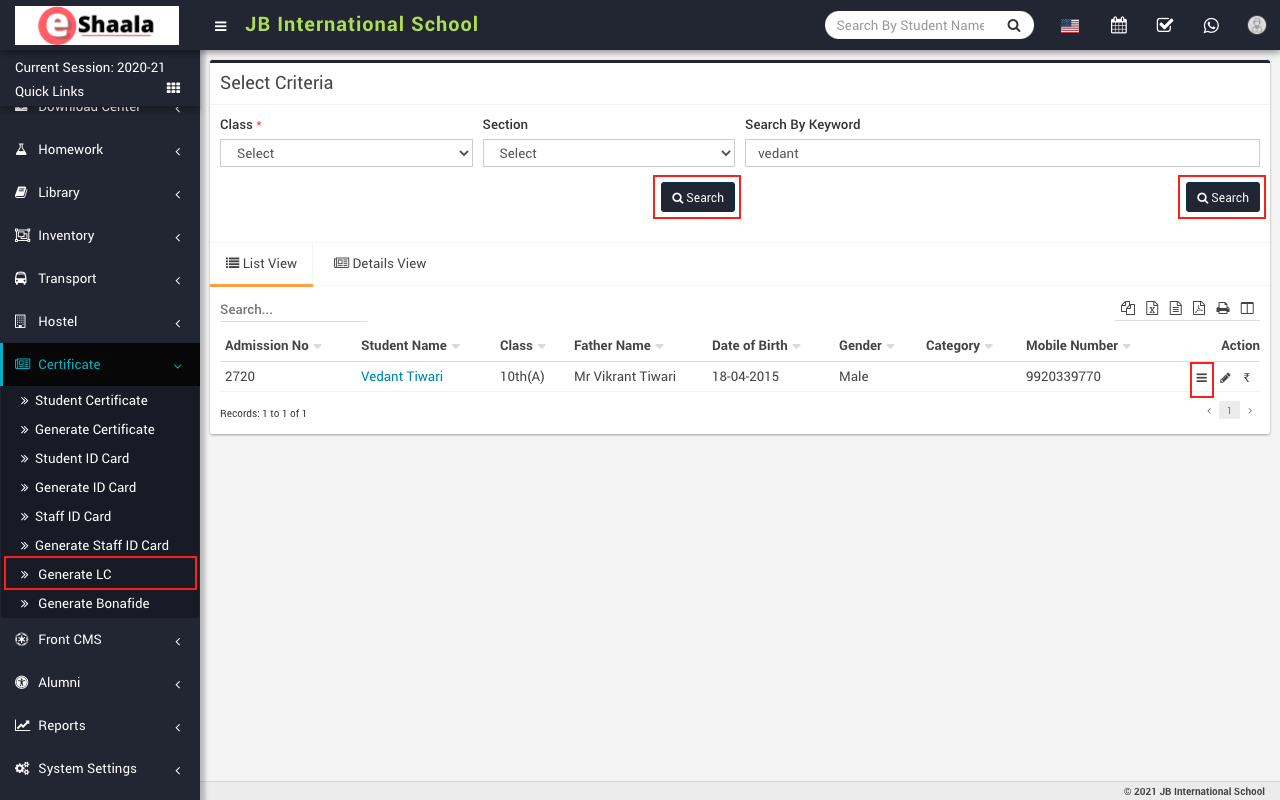
To enable the duplicate LC button, the principal will go to Certificate > Generate LC then select Class and Section and then click on the Search button. You can also search the student by keyword in Search Text Box and then click on the Search button.
The list of searched records is shown at the bottom of the page. You can see the student list in list-view and detailed-view by clicking List View and Details View tab.
To generate a student LC click on the Show icon present at the Action column in the student list, on click of this icon student profile page will be open.
At the bottom of the student profile page, you will see the Enable Duplicate LC button. Click on enable duplicate LC button, it will ask for the confirmation, click on OK.
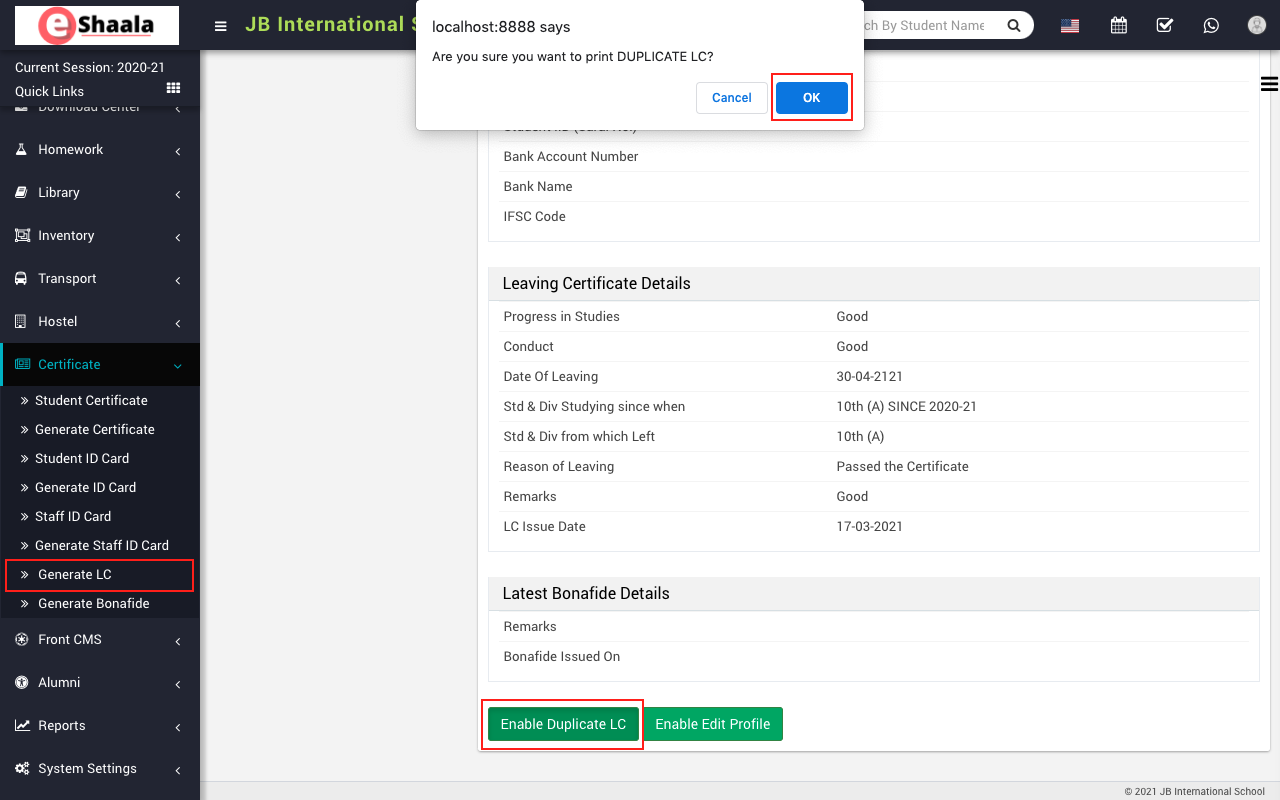
Now, the clerk from their account can able to generate the duplicate LC by following the same process
– Generate LC
 English
 Hindi
Hindi Marathi